Repertoire of Myriad Melodies/Settings
Last updated 2025-12-09
Settings
Basic
| Setting | Value |
|---|---|
| Performance Page | |
| Interface Styles | Set Now |
| Score theme auto-recommended based on song | Off, On |
| After starting, the performance will prioritize the use of the recommended score theme you possess. If you do not have it, the current assigned theme will be used. | |
| Music Settings | |
| Music Volume | 0 - 100 |
| Instrument Settings | |
| Instrument | Based on the score, Windsong Lyre, Floral Zither, Festive Drum, Nightwind Horn, Djem Djem Drum, Ukulele, "Lingering Euphonia", Leaping Spirit Piano |
| Beat Note Sound | 0 - 100 |
| Different instruments have different movements and sound effects for buttons when performing | |
| Calibration | |
| You are currently using a new device. It is highly recommended that you re-calibrate the device. | |
| Calibration Value | -400 - 400 (by 10) |
| Lag Calibration | Calibrate |
| Low Latency Mode | Off, On |
| If switched on, keystroke accuracy will be improved | |
| If switched off, the issue of experiencing abnormal sound effects on some devices may be resolved | |
| Note Falling Speed | |
| Set Speed | 0.75 - 3 (by 0.25) |
Specialization
| Icon | Effect | Description |
|---|---|---|
| Lower Difficulty | ||

|
Easy Notes | Musical notes will grow in size, giving you more time to hit them. |
| Increase Difficulty | ||

|
Hard Notes | Musical notes will shrink in size, giving you less time to hit them. Long notes will have longer tail-ends. |

|
Don't Allow Mistakes | Failure to hit any single note will immediately end the performance. |

|
Score Disruptions | Certain falling note lanes will be obscured. |
Key Bindings
| Setting | Default (Keyboard) | Default (Controller) | |
|---|---|---|---|
| Key Settings | |||
| Key 1 | A | 
| |
| Key 2 | S | 
| |
| Key 3 | D | 
| |
| Key 4 | J |  
| |
| Key 5 | K |  
| |
| Key 6 | L |  
| |
- Controller Options


Composition
| Setting | Value |
|---|---|
| Auto-Save | Off, On |
| Hear Key Sounds | Off, On |
Interface Styles
| Setting | Value |
|---|---|
| Falling Mode | Spread Mode, Vertical Mode |
| Selectable Themes | Score Theme |
| Advanced Settings | |
| Note Guide | Off, On |
| Emphasize Middle Line | Off, On |
| Draw line between synchronous notes | Off, On |
| Continuous Playing Effects | Off, On |
| Background Effects | 0.1 - 1.0 (by 0.1) |
Calibration
| Setting | Value |
|---|---|
| Show Notes | Off, On |
| Calibration Value | -400 - 400 (by 10) |
- Lag Calibration
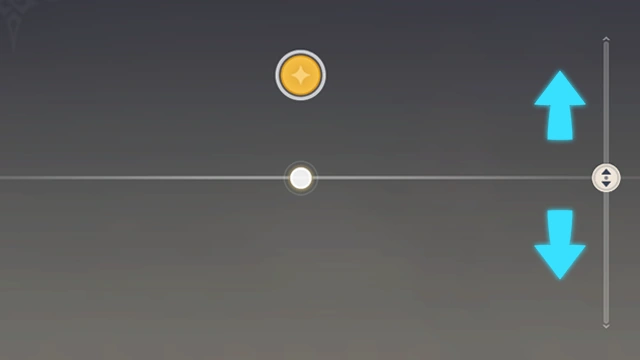
(Keyboard) Press the spacebar or left-click to the drumbeat on an accented note.
Adjust the decision line until it roughly coincides with the note position you entered.
Adjust the decision line until it roughly coincides with the note position you entered.
(Mobile) Tap the interface according to the drumbeat on an accented note.
Adjust the decision line until it roughly coincides with the note position you entered.
Adjust the decision line until it roughly coincides with the note position you entered.
(Controller) Press the controller button according to the drumbeat on an accented note.
Adjust the decision line until it roughly coincides with the note position you entered.
Adjust the decision line until it roughly coincides with the note position you entered.
Pause
| Setting | Value |
|---|---|
| Adjust Volume | |
| Music Volume | 0 - 100 |
| Beat Note Sound | 0 - 100 |
| Background Effects | |
| Background Transparency | 0.1 - 1.0 |
| Advanced Settings | |
| Note Guide | Off, On |
| Emphasize Middle Line | Off, On |
| Draw line between synchronous notes | Off, On |
| Continuous Playing Effects | Off, On |