Controls
Last updated 2026-09-09

Controls in Genshin Impact differs depending on the device. Mobile devices are primarily touch based controls (with one instance of Gyro input), PlayStation has controller inputs, and PC has mouse and keyboard inputs, or controller inputs. The changing of controls can be done from the Settings menu.
PC and Controllers
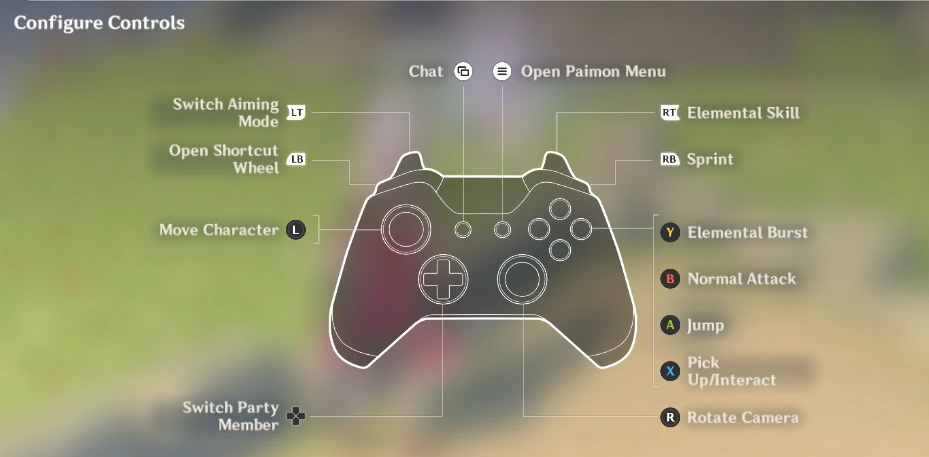

Xbox diagram
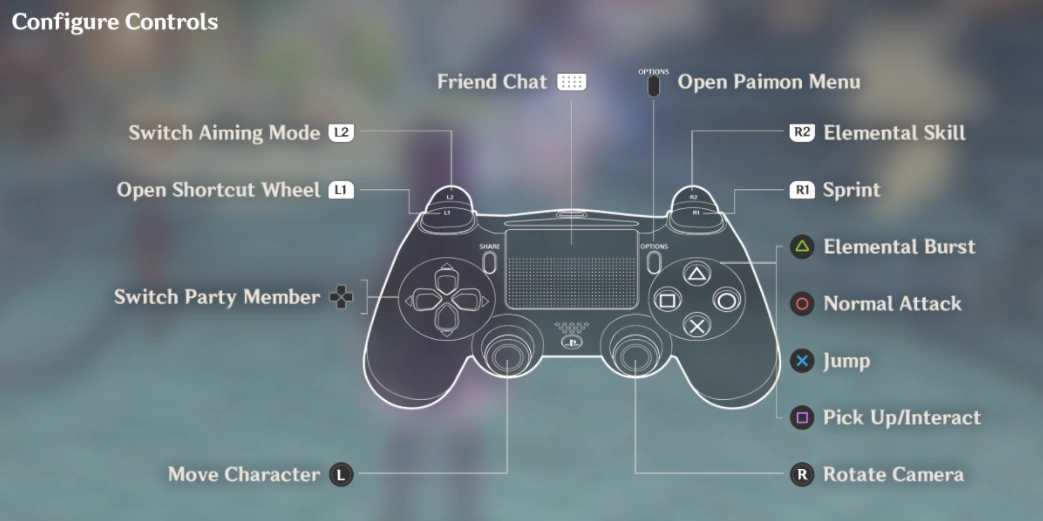

PS4 diagram
PC players can use either the standard Keyboard Inputs or the Controller Inputs. Touch is not supported on PC. Plugging in any brand of controller (Xbox and PlayStation) will result in a map of the respective controller, with critical actions mapped to each button. However, connecting a Switch controller to the PC doesn't seem to be fully supported, even though the game detects it as a controller.
If the player disconnects the controller without swapping back to Keyboard Inputs, the game will require them to either reconnect the controller or restart the game to exit the controller control scheme.
Any DirectInput (or XInput) supported HID game controller (USB or Bluetooth) will be recognized by the game as a valid controller, as the game runs on DirectX.
As with all types of controls, the camera sensitivity can be adjusted for normal gameplay as well as Aimed Shot Mode. However, the game does not have the invert Y-axis option on mouse and keyboard. Inverting the Y-axis in addition to the X-axis is possible only on a controller.
PlayStation consoles share the same controls as when using a PlayStation controller with PC.
Basic Settings
| Function | Default PC Binding | Default Xbox Binding | Default PlayStation Binding |
|---|---|---|---|
| Actions | |||
| Move Forward | W | 
| |
| Move Backward | S | 
| |
| Move Left | A | 
| |
| Move Right | D | 
| |
| Rotate Camera | 
|

| |
| Switch to Walk/Run. Or crouch downward in specific operating mode(s) | Left Ctrl | N/A | |
| Normal Attack |  * *
|

|

|
| Elemental Skill | E | 
|

|
| Elemental Burst | Q | 
|

|
| Sprint | ⇧ Left Shift | 
|

|
 * *
| |||
| Switch Aiming Mode | R |  * *
|
 * *
|
| Jump, or move upward in specific operating mode(s) | Space | 
|

|
| Drop (while climbing) | X |
|
|
| Pick Up/Interact | F | 
|

|
| Quick-Use Gadget | Z |  + * + *
|
 + * + *
|
| Gadget Quickswap | Hold Quick-Use Gadget* | ||
| Interaction in Certain Gameplay Modes | T | + *
|
+ *
|
| Quest Navigation | V |  * *
|
 * *
|
| Show objective for this phase of the quest | Hold Quest Navigation* | ||
| Abandon Challenge | P | +  * *
|
+  * *
|
| Switch to Party Member 1 | 1 |  * *
| |
| Switch to Party Member 2 | 2 |  * *
| |
| Switch to Party Member 3 | 3 |  * *
| |
| Switch to Party Member 4 | 4 |  * *
| |
| Switch to Party Member 5 | 5 | + *
|
+ *
|
| Switch to Party Member and Use Elemental Burst | Left Alt + Switch to Party Member* | N/A | |
| Open Shortcut Wheel | Tab ↹ | *
|
*
|
| Menus | |||
| Open Inventory | B | Accessible via Shortcut Wheel or Paimon Menu | |
| Open Character Screen | C | ||
| Open Paimon Menu | Esc* |  * *
|
 * *
|
| Open Map | M | Accessible via Shortcut Wheel or Paimon Menu | |
| Open Adventurer Handbook Screen | F1 | ||
| Open Co-Op Screen | F2 | + *
|
+ *
|
| Open Wish Screen | F3 | Accessible via Shortcut Wheel or Paimon Menu | |
| Open Battle Pass Screen | F4 | ||
| Open the Events Menu | F5 | ||
| Open the settings menu (within Serenitea Pot/The Cat's Tail) | F6 | + *
|
+ *
|
| Open the Furnishing Screen (inside Serenitea Pot) | F7 | Accessible via Shortcut Wheel or Paimon Menu | |
| Open Stellar Reunion (Only active when conditions are met) | F8 | + *
|
+ *
|
| Open Quest Menu | J | Accessible via Shortcut Wheel or Paimon Menu | |
| Open Notification Details | Y | *
|
*
|
| Open Chat Screen | ↵ Enter |  * *
|
 * *
|
| Open Special Environment Information | U | + *
|
+ *
|
| Check Tutorial Details | G | + *
|
+ *
|
| Elemental Sight (Hold) |  * *
|
N/A | |
| Elemental Sight (Toggle) | Accessible via Show Cursor and an on-screen button | + *
|
+ *
|
| Show Cursor | Left Alt* | N/A | |
| Open Party Setup Screen | L | Accessible via Shortcut Wheel or Paimon Menu | |
| Open Friends Screen | O | ||
| Hide UI | \ | N/A | |
| Confirm | N/A |
|
|
| Can only swap buttons with Cancel | |||
| Cancel | N/A |
|
|
| Can only swap buttons with Confirm | |||
| Unlisted | |||
| Open dialogue box to exit domain or Special Story Mode | Esc* | *
|
*
|
| Reset camera angle | *
|
*
|
*
|
| Photo Mode: Picture settings | F1* (independent of Open Adventurer Handbook Screen) |
*
|
*
|
| (independent of Pick Up/Interact) | |||
| Photo Mode: Character pose | F2* (independent of Open Co-Op Screen) |
Accessible by navigating from Photo Mode: Picture settings using: | |
| /*
|
/*
| ||
| Photo Mode: Character expression | F3* (independent of Open Wish Screen) |
Accessible by navigating from Photo Mode: Picture settings using: | |
| /*
|
/*
| ||
| Photo Mode: Hide UI | Ctrl + H* | *
|
*
|
| (independent of Elemental Burst) | |||
| N/A when Picture settings, Character pose or Character expression panel is open | |||
| Photo Mode: Take Photo | ↵ Enter* (independent of Open Chat Screen) |
|
|
| (follows the Confirm binding) | |||
| when Picture settings, Character pose or Character expression panel is open, changes to: | |||
| *
|
*
| ||
| * Cannot change input method for this function | |||
Miliastra Wonderland
| Function | Default PC Binding | Default Xbox Binding | Default PlayStation Binding |
|---|---|---|---|
| General Controls | |||
| Move Forward | W |
| |
| Move Backward | S |
| |
| Move Left | A |
| |
| Move Right | D |
| |
| Switch to Walk/Run | Left Ctrl | N/A | |
| Sprint | ⇧ Left Shift |
|
|
| *
| |||
| Jump, or move upward in specific operating mode(s) | Space |
|
|
| Drop (while climbing) | X |
|
|
| Open Paimon Menu | Esc* | *
|
*
|
| Open Chat Screen | ↵ Enter | *
|
*
|
| Show Cursor | Left Alt* | N/A | |
| Hide UI | \ | N/A | |
| Open Shortcut Wheel | Tab ↹ | *
|
*
|
| Enable Microphone | N | ||
| Voice Chat Settings | Left Alt + Enable Microphone* | ||
| Lobby Controls | |||
| Pick Up/Interact | F |
|
|
| Interaction in Certain Gameplay Modes - 1 | E |
|
|
| Interaction in Certain Gameplay Modes - 2 | T |
|
|
| Open Expressions Screen | V | + *
|
+ *
|
| View Favorited Wonderlands | B | Accessible via Shortcut Wheel or Paimon Menu | |
| Open Cosmetic Plans | C | ||
| Open Map | M | ||
| Open Gameplay Guide | F1 | ||
| Open Lobby Screen | F2 | ||
| Open Odes Screen | F3 | ||
| Open Miliastra Pass Screen | F4 | ||
| Open My Miliastra Wonderland | F5 | Accessible via Shortcut Wheel or Paimon Menu, but must change control device to keyboard and mouse | |
| Open Popular Miliastra Wonderlands | F6 | Accessible via Shortcut Wheel or Paimon Menu | |
| Open Stellar Reunion (Only active when conditions are met) | F8 | ||
| Open Quest Menu | J | ||
| Open Notification Details | Y | *
|
*
|
| Open Party Screen | L | Accessible via Shortcut Wheel or Paimon Menu | |
| Open Friends Screen | O | ||
| Matchmaking/Room | P | ||
| Open Switch Character Page | I | ||
| Wonderland Controls | |||
| Wonderland/General | |||
| Pickup/Interact | F |
|
|
| Open inventory interface (only available in stages with this feature) | B | Accessible via Shortcut Wheel or Paimon Menu | |
| Open equipment interface (only available in stages with this feature) | C | ||
| Open map interface | M | ||
| Open Gift Box Interface | F1 | ||
| Open Deck Selector | F2 | ||
| Open Wonderland Task Interface | F3 | ||
| Wonderland/Classic Mode | |||
| Normal Attack | *
|
||
| Elemental Skill | E | ||
| Elemental Burst | Q | ||
| Character Skill 1 | Z | ||
| Character Skill 2 | G | ||
| Switch to aiming mode | R | ||
| Interaction in Specified Gameplay Modes | T | ||
| Switch to Party Member 1 | 1 | ||
| Switch to Party Member 2 | 2 | ||
| Switch to Party Member 3 | 3 | ||
| Switch to Party Member 4 | 4 | ||
| Switch to Party Member and Use Elemental Burst | Left Alt + Switch to Party Member* | ||
| Wonderland/Beyond Mode | |||
| Normal Attack | *
|
|
|
| Character Skill 1 | E |
|
|
| Character Skill 2 | Q |
|
|
| Character Skill 3 | R | *
| |
| Character Skill 4 | T | *
| |
| Craftsperson Keymap 1 | 1 | *
| |
| Craftsperson Keymap 2 | 2 | *
| |
| Craftsperson Keymap 3 | 3 | N/A | |
| Craftsperson Keymap 4 | 4 | ||
| Craftsperson Keymap 5 | 5 | ||
| Craftsperson Keymap 6 | 6 | ||
| Craftsperson Keymap 7 | 7 | ||
| Craftsperson Keymap 8 | 8 | ||
| Craftsperson Keymap 9 | 9 | ||
| Craftsperson Keymap 10 | 0 | ||
| Craftsperson Keymap 11 | U | ||
| Craftsperson Keymap 12 | Z | ||
| Craftsperson Keymap 13 | Y | ||
| Craftsperson Keymap 14 | G | ||
| Craftsperson Keymap 15 | H | ||
| Craftsperson Keymap 16 | I | ||
| Craftsperson Keymap 17 | O | ||
| Craftsperson Keymap 18 | P | ||
| Craftsperson Keymap 19 | J | ||
| Craftsperson Keymap 20 | K | ||
| Craftsperson Keymap 21 | L | ||
| Craftsperson Keymap 22 | V | ||
| Craftsperson Keymap 23 | F5 | ||
| Craftsperson Keymap 24 | F6 | ||
| Craftsperson Keymap 25 | F7 | ||
| Craftsperson Keymap 26 | F8 | ||
| Craftsperson Keymap 27 | F9 | ||
| Craftsperson Keymap 28 | F10 | ||
| Craftsperson Keymap 29 | ` | ||
| Craftsperson Keymap 30 | - | ||
| Craftsperson Keymap 31 | = | ||
| Craftsperson Keymap 32 | [ | ||
| Craftsperson Keymap 33 | , | ||
| Craftsperson Keymap 34 | . | ||
| Craftsperson Keymap 35 | / | ||
| Craftsperson Keymap 36 | ↑ | ||
| Craftsperson Keymap 37 | ↓ | ||
| Craftsperson Keymap 38 | ← | ||
| Craftsperson Keymap 39 | → | ||
| Craftsperson Keymap 40 | Right Ctrl | ||
| Craftsperson Keymap 41 | ⇧ Right Shift | ||
| Craftsperson Keymap 42 | ← Backspace | ||
| Craftsperson Keymap 43 | ⮸ Caps Lock | ||
Mobile
Mobile devices lack buttons to be mapped to certain functionality; all actions are done by tapping the screen. However, there is an extra feature called "Gyro Aiming." With Gyro Aiming enabled, you can use the gyroscope in your mobile device for Aimed Shot.
The following controls can be changed under Settings.
| Control | Possible Settings | Notes |
|---|---|---|
| Camera Sensitivity | 1–5 | |
| Camera Sensitivity (Aimed Shot Mode) | 1–5 | |
| Gyro Aiming | On / Off | Affects Aimed Shot Mode. On: You can tilt your phone to move the camera. Off: Keeps the camera fixed and you can manually move it by touching and dragging the screen. |
| Mode: Walk | Default or Use the button to switch | Default: While moving, you can switch between walking and running based on your finger's position relative to the center of the touchpad. Use button: Adds a small button on the lower right side of the screen, right above your UID. Clicking on it toggles between walking and running. |
Change History
- Added unlisted keybinds for most menus and interfaces.
- Added Key Bindings for Miliastra Wonderland.
Version Transcription missing[verification needed]
- Added unlisted keybinds for the Furnishing placement screen in the Serenitea Pot.
- Added controller support for Android.
- Added keybinds for "Hide Main Menu."
- Added Gyroscope controller support.
- Added PC platform support for DualSense™ Wireless Controller for PS5™.
- Added keybinds for "Open Party Setup Screen" and "Open Friends Screen."
- Added keybinds for Serenitea Pot.
- Added more camera customizations for mobile.
- Camera mode's keybinds were changed to be independent of other keybinds that were the same by default.
- Added ability to change most keybinds.
- Controls were released.
| ||||||||||||||||||||||||||||||||||||||
Verify any other functions that cannot have keybinds changed.