Deck Menu
Last updated 2026-09-10
The Deck Menu is used to edit decks for Genius Invokation TCG. It can be accessed from the Casket of Tomes or prior to starting a Stage with limited functionality.
Tutorial
- Genius Invokation TCG: Editing Decks
 Press the Deck button to enter the Edit Menu.
 You need to select a set of appropriate Characters and Action Cards to form an effective deck. At the press of a button, you can switch over to edit your Character and Action Cards as well, alloweing you to build a deck of your own design!
 A deck needs to have 3 valid Character Cards and 30 valid Action CArds to be set as an active deck. Should any of the cards within the deck fail to meet the criteria for usability, the Casket of Tomes will hint as such to you, so please take note...
 Add in the cards you want by dragging them over the avatar at the top of the menu or just slotting them in. Conversely, you can also drag or un-slot them to remove them from the deck as well. Additionally, you can drag Character Cards that are already in a deck to the deck of another avatar to switch the positions of the corresponding Character Cards. Right clicking a card will also allow you to swiftly add or remove it.
 You can select the card to review its key details, which allows you to understand not only its effects, but also change its appearance, and see how you can obtain it. You can also add or remove cards while in the details dection.


Deck List
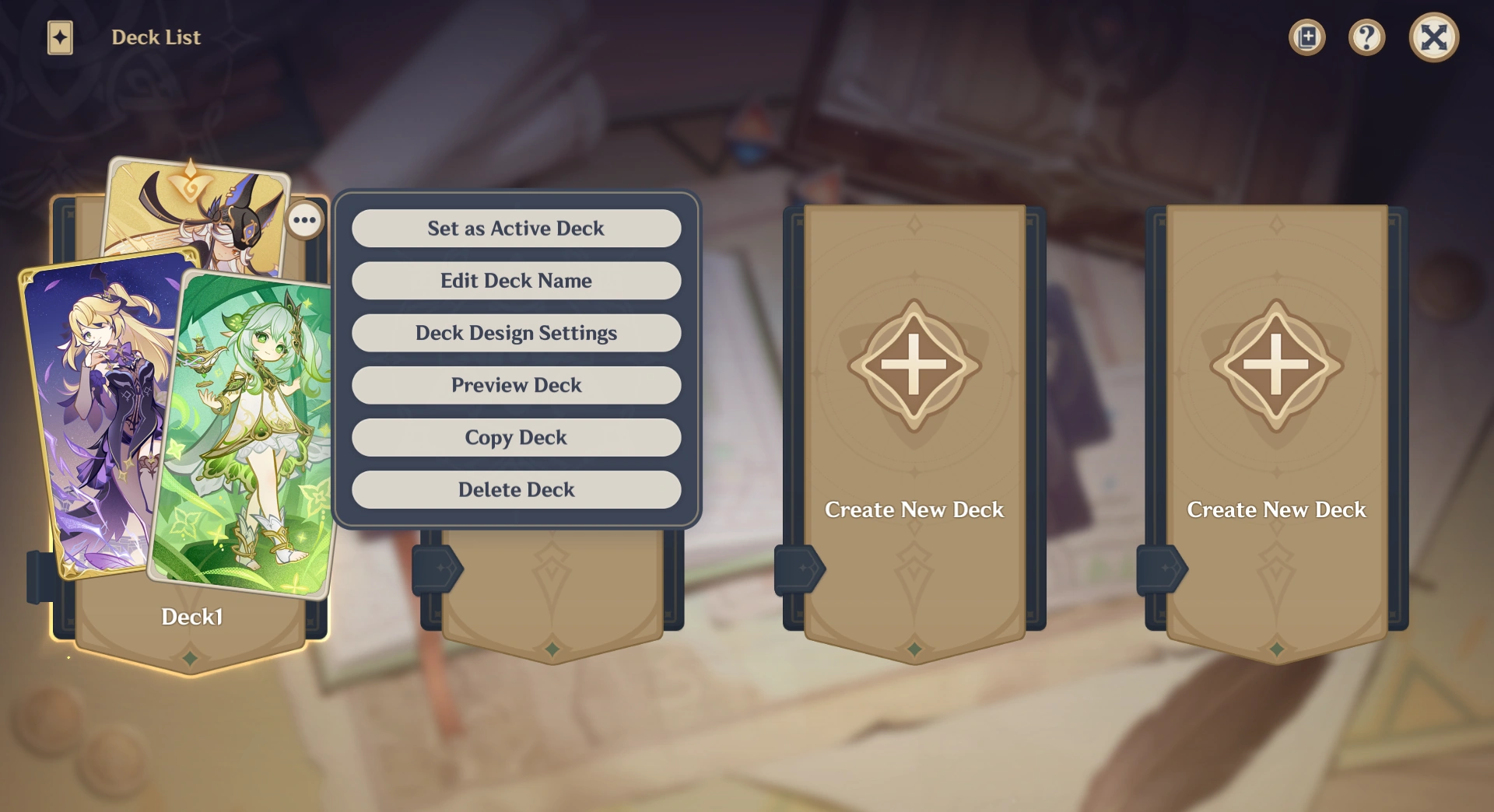

Deck List showing options
Displays the list of decks with the Character Cards displayed. Each deck has options to:
- Set as Active Deck
- Edit Deck Name
- Deck Design Settings
- Preview Deck - Display Active Lineup and Active Deck in grid view, with option to save as screenshot.
- Copy Deck
- Delete Deck
My Deck
Displays list of Character Cards and Action Cards in the deck and in inventory.
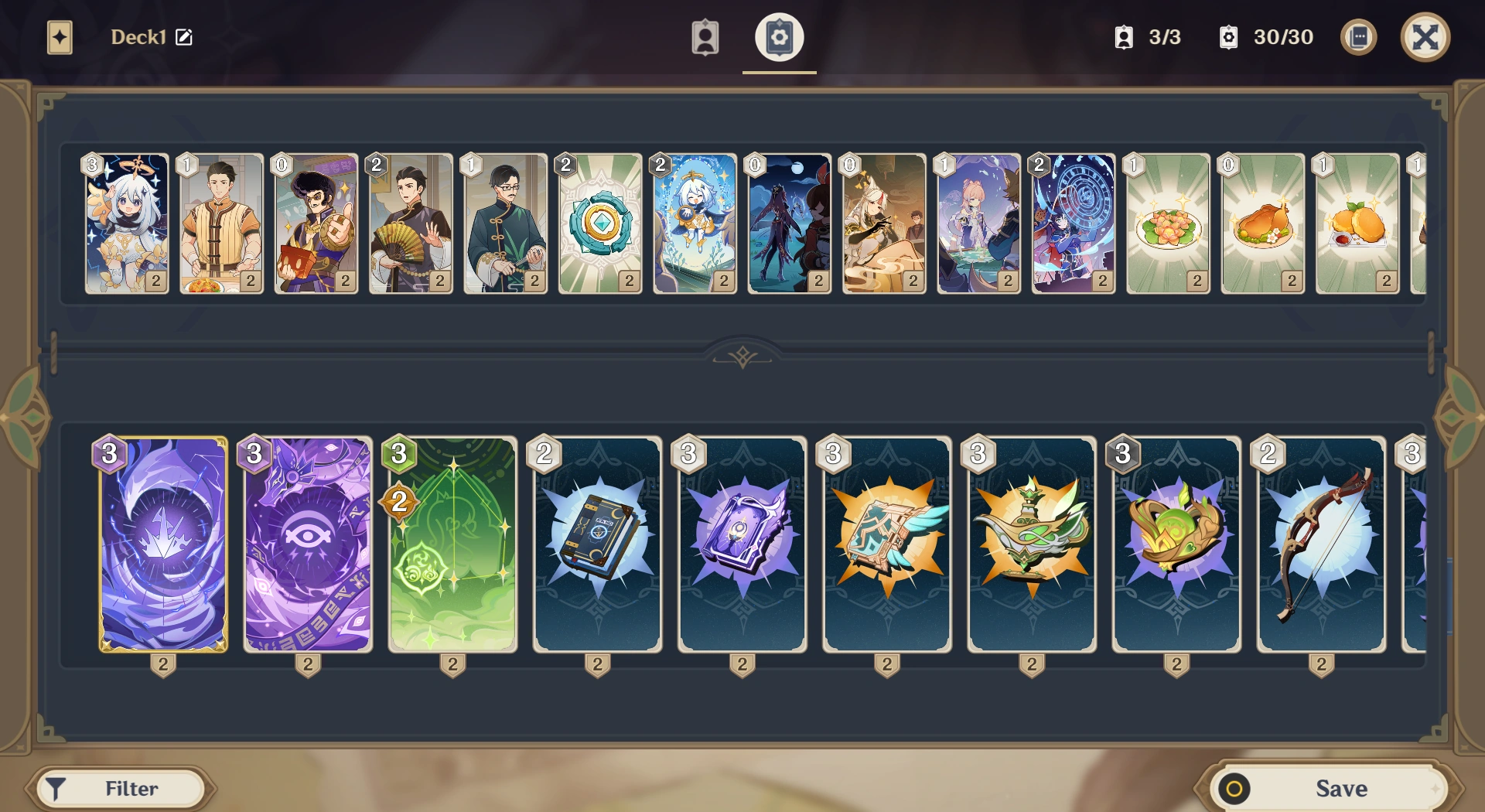

Showing list of cards
Character Cards
- Filter
- Search
- Case sensitive and exact match search.
- Display Options
- Show Locked Card(s)
- Filters
- Type
- Cryo
- Hydro
- Pyro
- Electro
- Geo
- Dendro
- Anemo
- Weapon
- Sword
- Catalyst
- Claymore
- Bow
- Polearm
- Other Weapons
- Faction
- Mondstadt
- Liyue
- Inazuma
- Sumeru
- Fontaine
- Natlan
- Nod-Krai
- Fatui
- The Eremites
- Hilichurl
- Monster
- Consecrated Beast
- Cosmic Calamity
- Other Affiliation(s)
- Tag
- Arkhe: Pneuma
- Arkhe: Ousia
- Skill Effect
- Discard
- Select
- Prepare Skill
- Summon
- Heal
- Shield
- Nightsoul State
- Bond of Life
- Technique
- Piercing DMG
- Generate Action Card
- Recharge
- Type
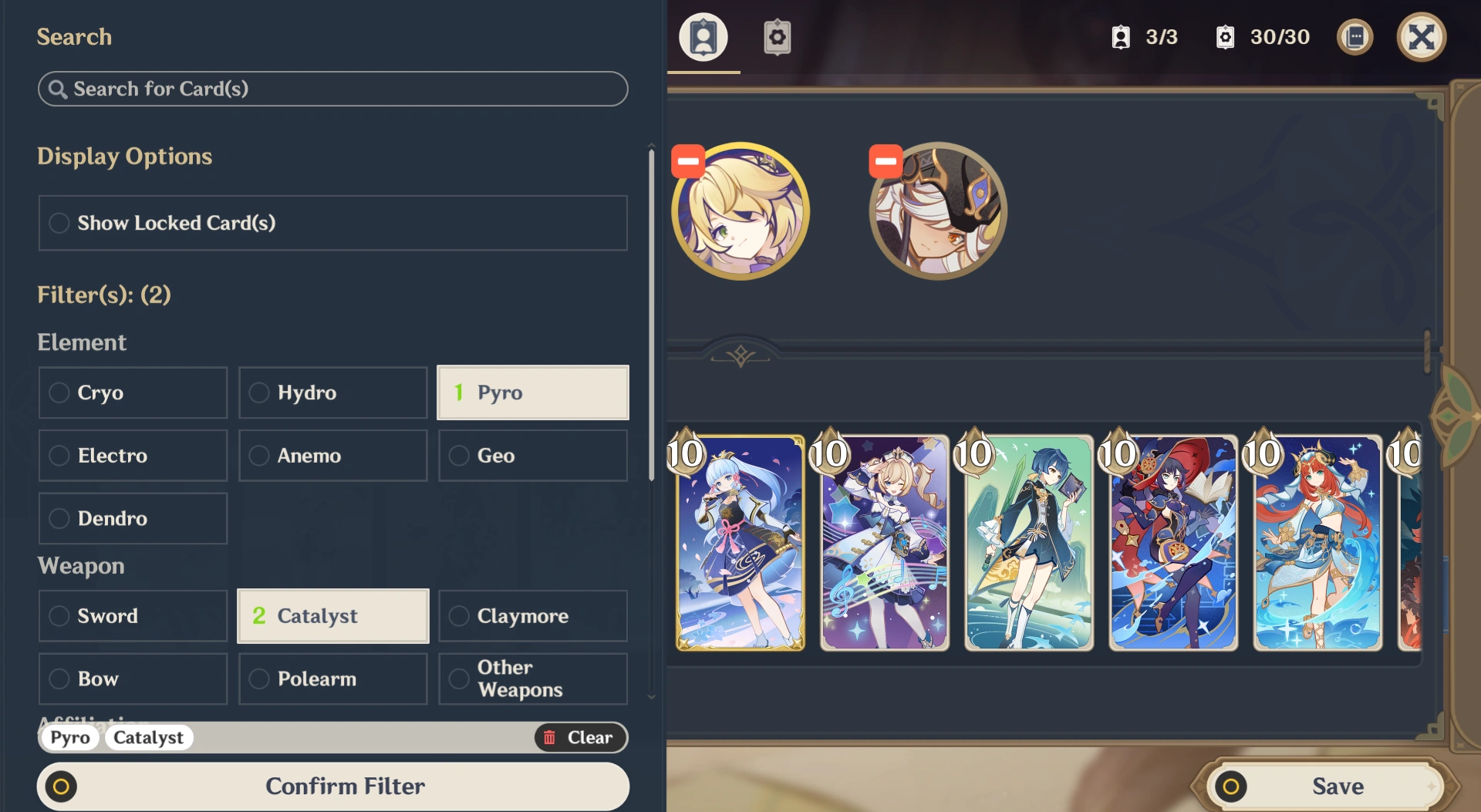


Showing card filter
Action Cards
- Filter
- Search
- Case sensitive and exact match search.
- Display Options
- Show Locked Card(s)
- Show Unusable Card(s)
- Filters
- Type
- Tag
- Weapon
- Artifact
- Talent
- Technique
- Arcane Legend
- Food
- Item
- Companion
- Location
- Elemental Resonance
- Elemental Transfiguration
- Other Tags
- Cost
- Cost 0
- Cost 1
- Cost 2
- Cost 3
- Cost 4
- Cost 5
- Cost 6
- Other Costs
- Skill Effect
- Discard
- Select
- Prepare Skill
- Summon
- Heal
- Shield
- Nightsoul State
- Bond of Life
- Technique
- Piercing DMG
- Generate Action Card
- Recharge
- Adventure
Deck Design Settings
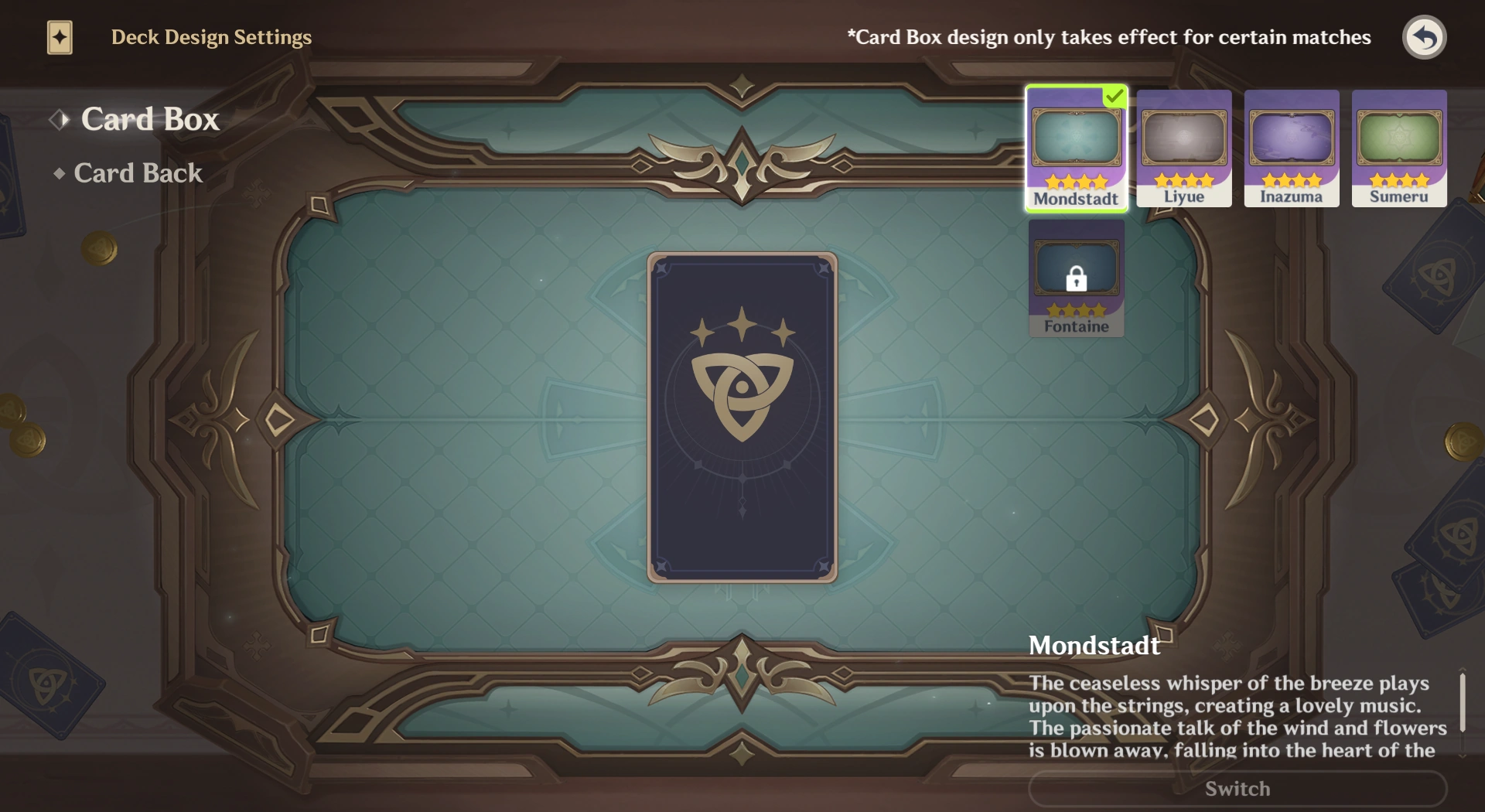

Customization options
- Card Box - Preview and select Card Boxes and view description.
- Card Back - Preview and select Card Backs and view description.
Change History
Released in Version 3.3
| ||||||||||||||||||||||||||||||||||||||